

AI Stem Separation
Dec 19, 2025
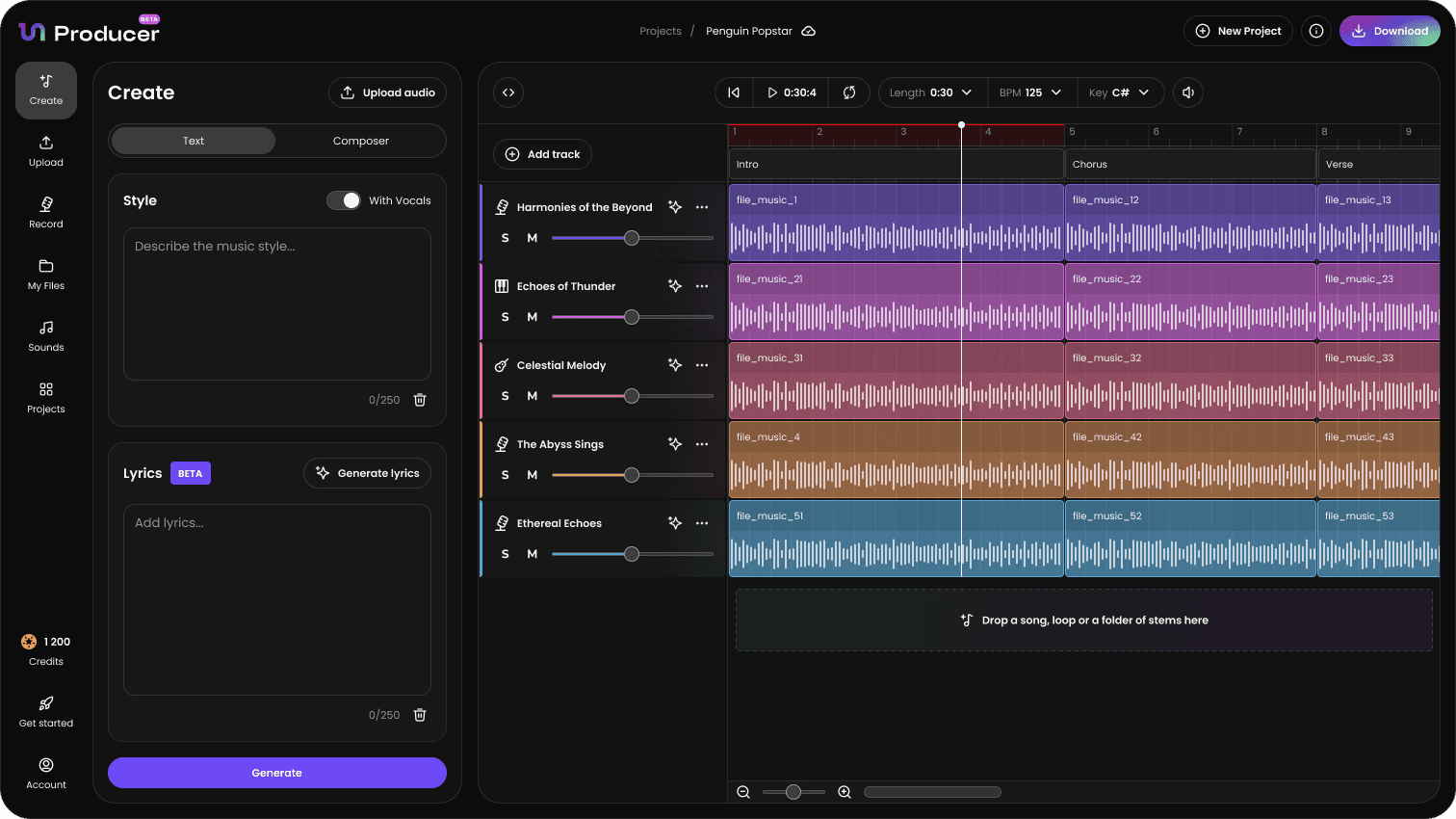
One of Tuney Producer's most powerful features is AI Stem Separation. This process allows you to upload any audio file—whether a full, mixed song, a beat, or a simple loop—and have the AI automatically deconstruct it into clean, isolated instrument tracks (stems) like Vocals, Drums, and Bass.
This is the foundation for creating remixes, mashups, and editing existing music.
1. Uploading Your Audio and Choosing Settings
To begin, select the Click to Upload Audio option on the Creation Screen and upload your file(s). Once the upload is complete, you will be prompted to choose your separation settings:
Original Audio (No Separation): Select this if you are uploading an acapella, a single loop, or a folder of pre-separated stems and do not need to separate the file by instrument. The file will simply be added to your library.
Full Stem Separation: Select this option if you are uploading a mixed file like a full song and want Tuney's AI to separate it into as many distinct tracks as possible (e.g., Vocals, Drums, Bass, Other/Melody).
Click Confirm & Proceed after selecting your preferred separation method.
2. Classifying and Refining Your Stems
After the initial AI separation, a classification screen will appear. This is a critical step where you confirm or correct the AI's auto-detection and select which stems to save to your project.
A. Confirming Musical Parameters
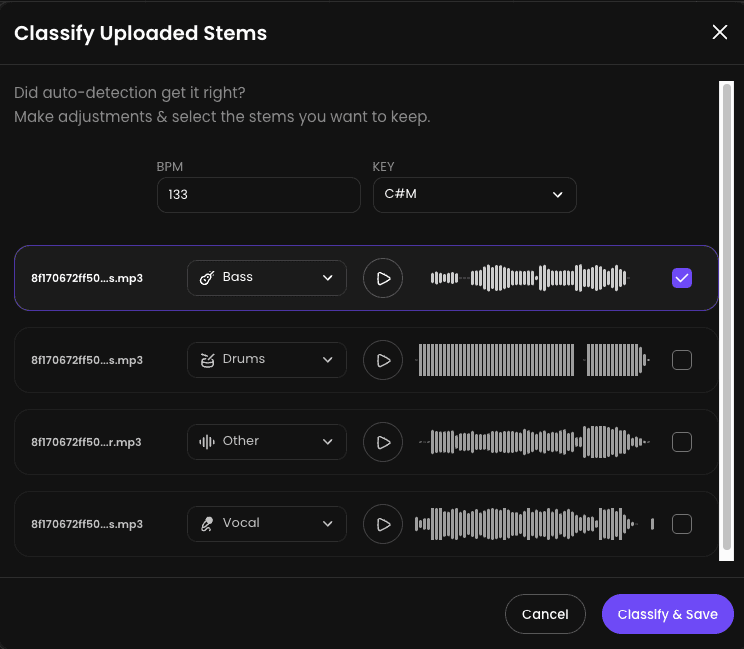
At the top of the screen, you must confirm the track's fundamental musical properties:
BPM (Beats Per Minute): The AI automatically detects the tempo. Review this value and manually adjust it if you know the true BPM is different.
KEY: The AI detects the musical key (e.g., C#M for C# Major). This ensures all future AI generation or library loops will be harmonically compatible.
B. Reviewing and Selecting Stems
The screen lists all the stems the AI successfully separated. For each stem file:
Review Classification: Check the dropdown menu to ensure the AI correctly identified the instrument (e.g., Drums, Bass, Vocal, Other). You can use the dropdown to correct any misclassification (e.g., changing "Other" to "Synth").
Audition: Click the Play icon (▶) next to the waveform to listen to the isolated stem and confirm its quality.
Select Stems to Keep: Use the checkbox on the right side of each entry to select which stems you want to save and use in your project. Unchecking a box will discard that stem.
Action: Once you have reviewed the parameters and selected your desired stems, click Classify & Save.
3. Final Processing and Availability
After classification, Tuney Producer performs the final background processing and saving of your selected files.
Notification: You will see a notification informing you that "Your file is being uploaded and."
Background Work: The application is now securely saving the new, isolated stem files into your account's cloud storage.
You do not need to wait for this process to finish. You can close the window and continue working. Once the processing is complete, your selected stems will be available in your My Files library, ready to be dragged into the Timeline Editor to start your new project or remix.