

Getting Started: Creating Music With A Simple Prompt
Dec 19, 2025
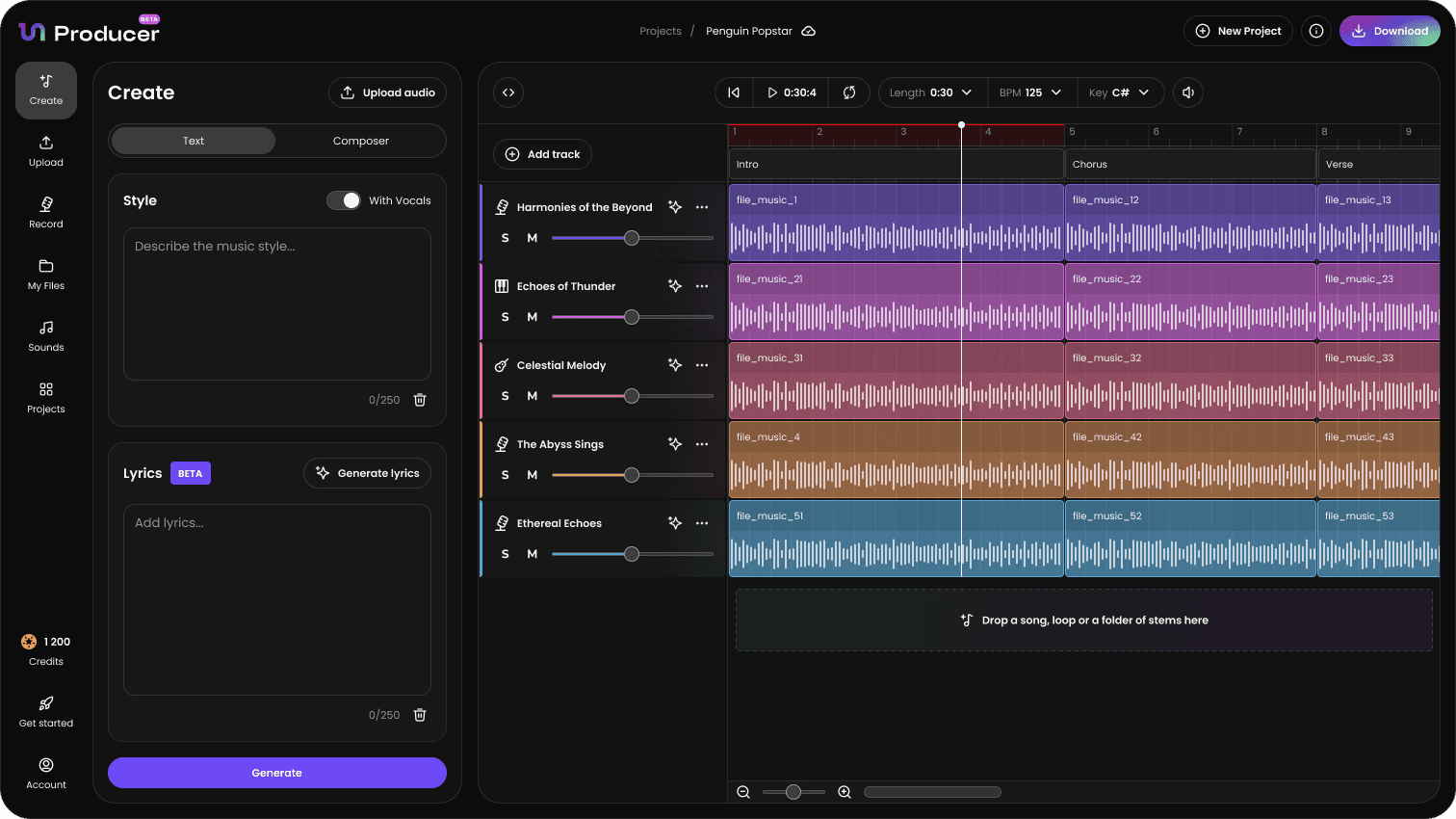
One of the fastest ways to start a project in Tuney Producer is by simply navigating to the “Create” tab, then describing your desired track in the “Describe your song” text box. This process transforms a natural language input into a fully arranged, multi-track song, ready for the Timeline Editor.
This article covers how to craft effective prompts, what to expect from the results, and how to create additional variations.
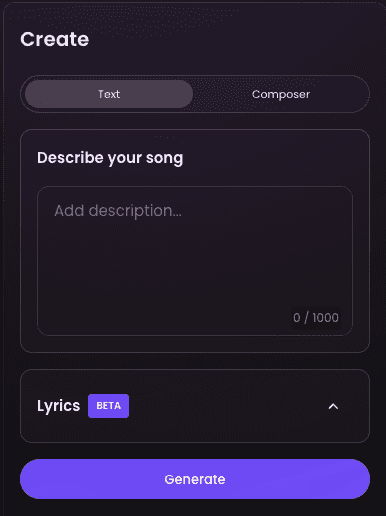
1. Best Practices for Text Prompts
Be specific and descriptive to generate the best results. Focus your prompt on three main elements:
Genre & Vibe: What is the overall style and feeling?
Example: "Heavy trap beat," "Uplifting orchestral soundtrack," "Downtempo Lofi Jazz."
Instrumentation: What specific elements must be present or absent?
Example: "Featuring a bright synth arpeggio," "A deep, analog bassline, no acoustic drums," "A simple, distorted electric guitar riff."
Mood & Adjectives: Use emotional words to define the texture and energy.
Example: "Dark and suspenseful," "Driving and energetic," "A peaceful, nostalgic mood."
Example of an Effective Prompt:
"A melancholic indie pop track with a fast tempo, featuring a deep, warm bass, shimmering chorus guitars, and sparse, heavy-hitting drums."
2. Understanding the initial results
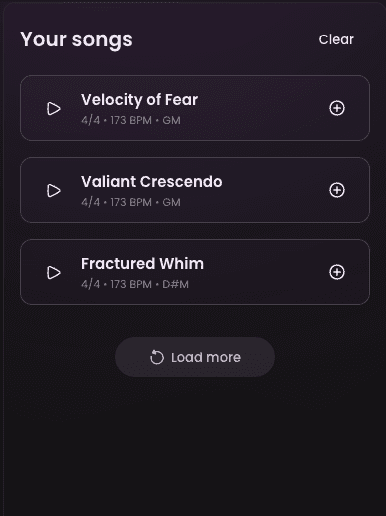
You will see several initial results, or "takes," based on your prompt. Listen to each one to decide which foundation best fits your vision before proceeding to the Timeline Editor.
If the first set of results is close but not quite right, you don't need to start over. Click “Load more” to generate more variations based on your prompt.
Once you have selected a track you like, click "Move To Grid" to move into the Timeline Editor and begin refining the arrangement and mix.