

Generating Mashups
Jan 30, 2026
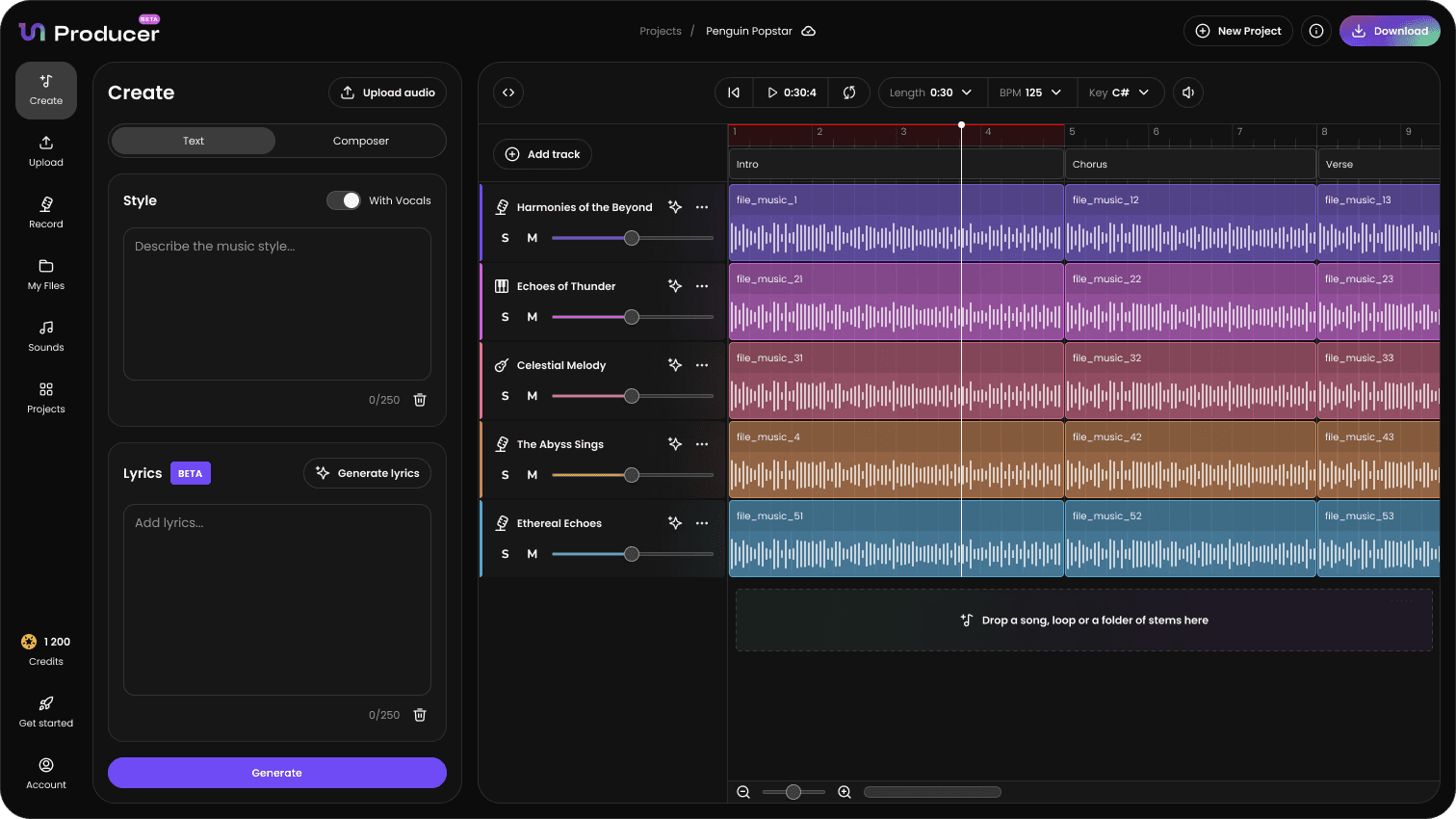
The Mashup feature in Tuney Producer allows you to blend multiple songs into a single, cohesive track instantly. This tool is perfect for DJs, producers, and creative fans looking to experiment with how different tracks sound when layered together.
1. Choosing Your Tracks
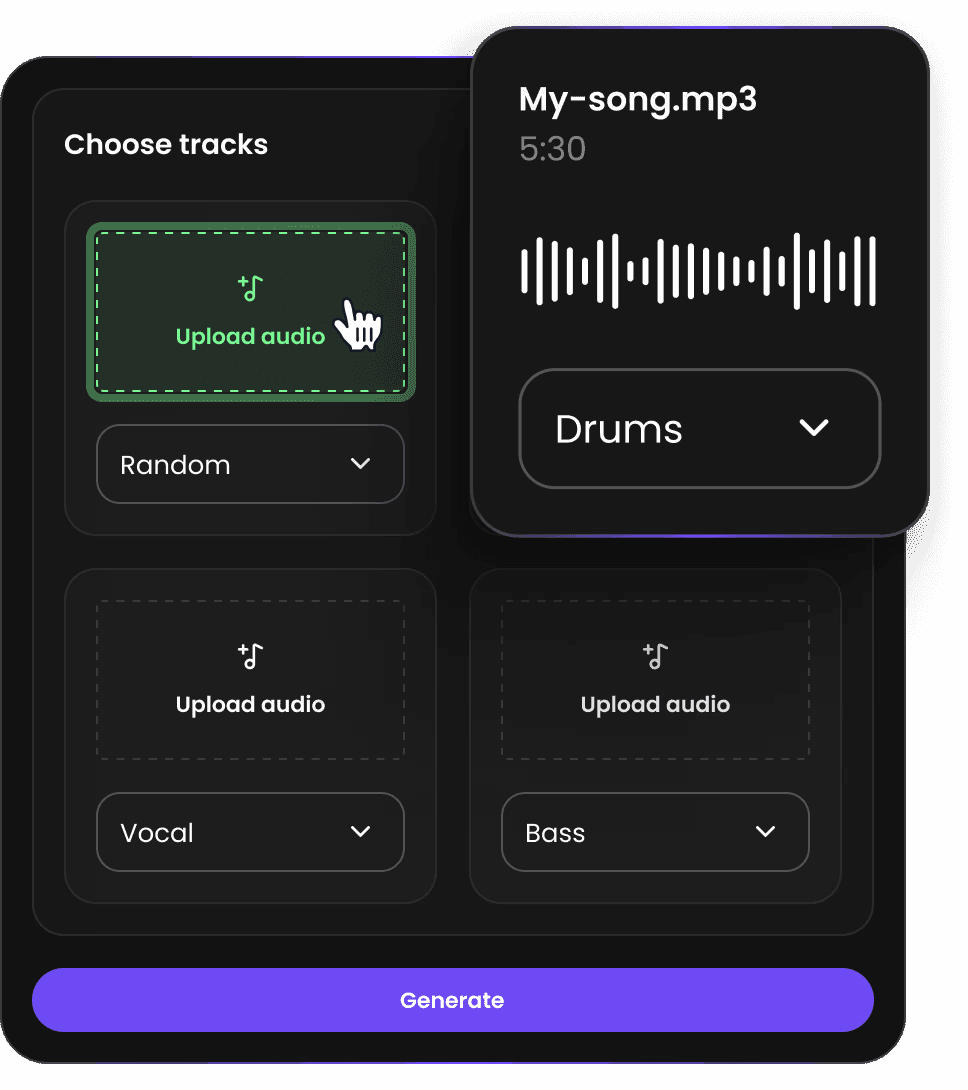
To start a mashup, navigate to the Mashup tab in the sidebar. You can combine up to 4 different tracks to create your unique musical blend.
Upload Tracks: Drag and drop audio files directly into the "Choose Tracks" upload boxes.
Remove or Replace: If you change your mind, click the Trash icon on a track card to remove it and upload something else.
2. Selecting Stem Registers
For each song you upload, you have the option to decide which specific musical elements the AI should "keep" for the mashup. Under each track, use the dropdown menu to select a register:
Vocal: Keeps only the isolated vocal stem from that track.
Bass: Focuses on the low-end and bassline.
Drums: Extracts only the percussion and beat.
Chords: Focuses on the melodic and harmonic elements.
Random: Lets Tuney's AI choose the best part of that song to contribute to the mix.
3. Generating and Adding to Grid
Once you have configured your tracks and selected your desired registers, click the Generate button at the bottom of the screen.
Review Options: The AI will process the tracks, matching their tempo and key to ensure a seamless blend. It will then present you with multiple mashup options.
Choose Your Favorite: Audition the different results to see which combination sounds best.
Add to Project: Once you find the perfect mix, you can choose to add it directly to your Timeline Editor grid.
From there, you can further refine your mashup by adding effects, rearranging clips, or using the Co-Producer to add even more layers.