

Recording Directly into Tuney Producer
Jan 30, 2026
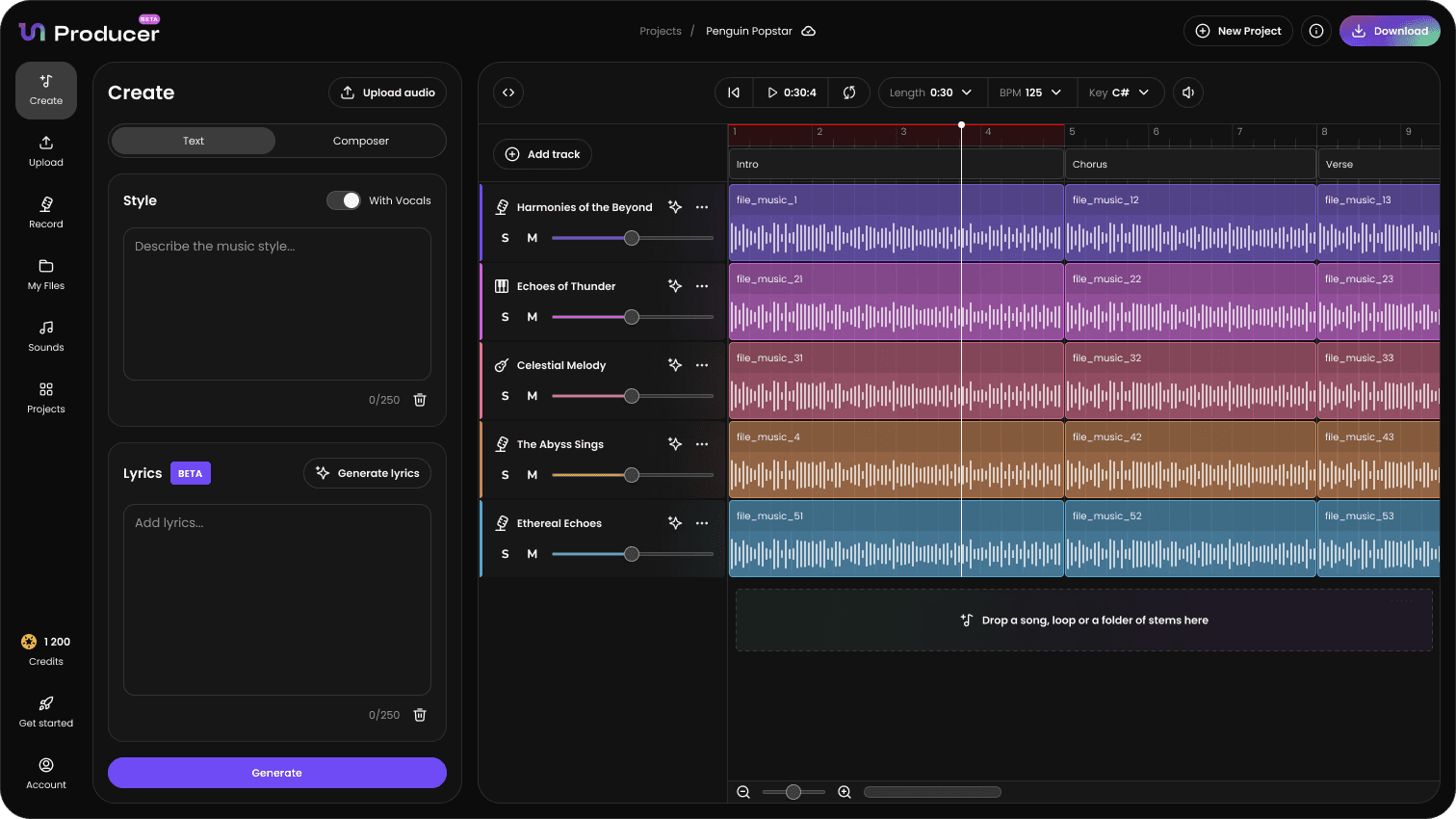
The Record feature allows you to capture live audio such as vocals or instruments directly into your project timeline. By integrating your real-world performance with AI-generated tracks, you can add a unique, human touch to your production.
1. Setting Up Your Device
When you open the Record tab for the first time, your browser will prompt you to grant Tuney Producer access to your device's microphone.
Microphone Access: You must click "Allow" to enable recording functionality.
Selecting Your Input: Use the dropdown menu in the settings to select the specific microphone you wish to use (e.g., your built-in computer microphone or an external USB audio interface).
2. Configuring Your Recording Options
Before you start, you can toggle two important settings to ensure the best possible recording quality:
Echo Cancellation: When enabled, this digital filter identifies and removes unwanted sounds—like the audio from your speakers—that might be picked up by your microphone. This prevents a "looping" echo and ensures your vocal or instrument recording remains clean.
Play the grid track when recording starts: This option plays your current project timeline while you record. This is essential for keeping your performance in time with the existing beat and instrumentation, acting like a professional click track or backing track.
3. Starting Your Performance
Once your settings are configured and you can see your audio levels reacting to your voice or instrument:
Prepare: Position yourself at your microphone and ensure you are ready to perform.
Record: Click the large Record button to begin. If you have enabled the "Play grid track" option, your project will start playing immediately so you can perform in sync.
Finish: Click stop when your take is complete. Your new recording will appear in the "Your recordings" section, ready to be added to the Timeline Editor.