

Starting From A Sound: Loop Browsing and Audio Upload
Dec 19, 2025
Starting from a Sound: Loop Browsing and Audio Upload
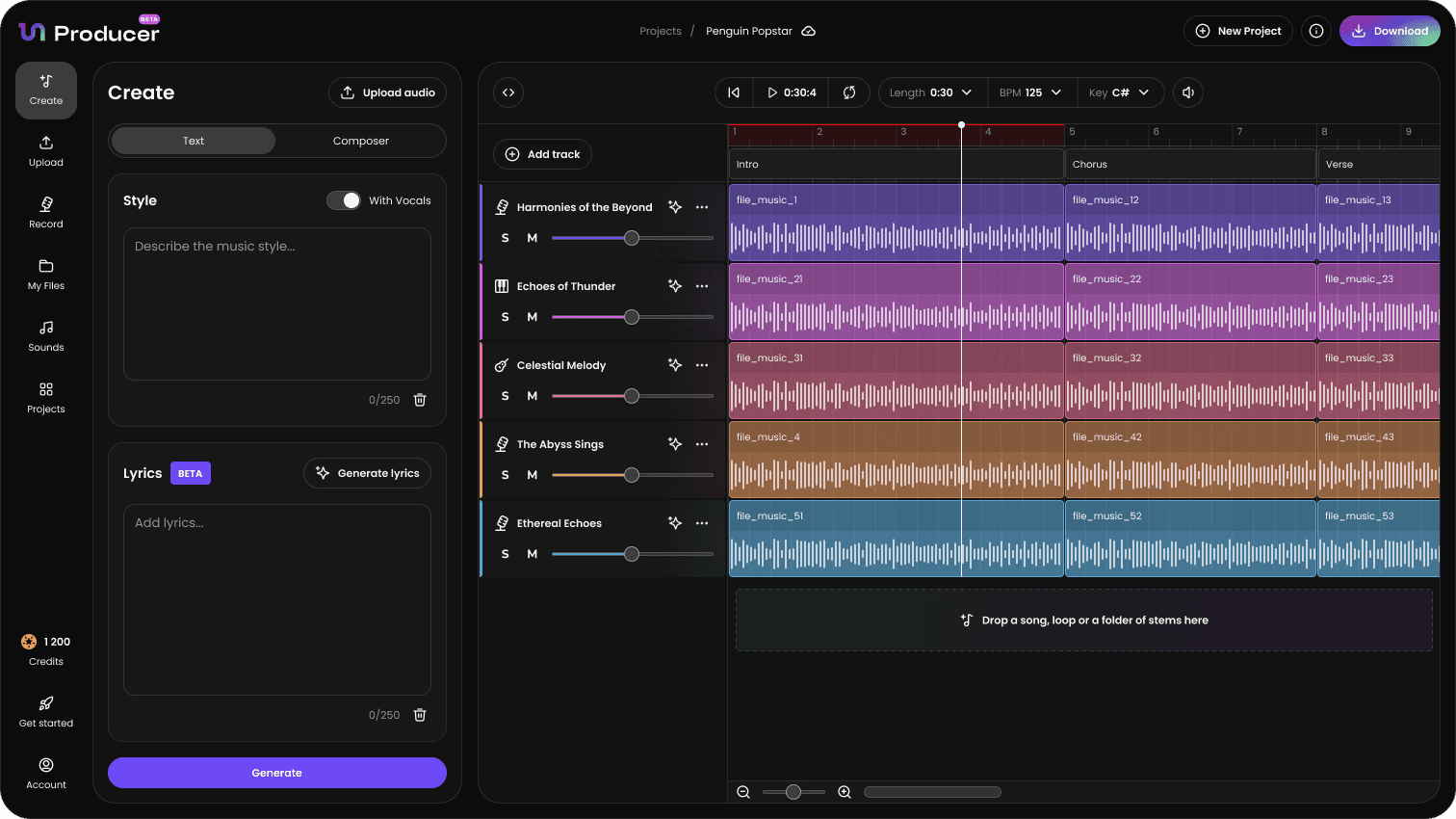
You don't always need a full AI track or a complete song to begin a project. Tuney Producer allows you to start a new composition with a single inspiring sound, whether it comes from your own collection or from our extensive library.
This article details the two creation options focused on single-sound inspiration: "Upload" and "Sounds."
1. Starting with Your Own Audio
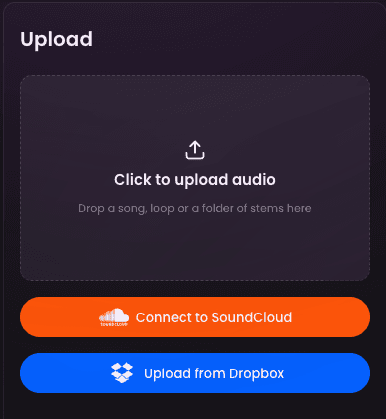
Selecting the Click to Upload Audio option within the “Upload” tab lets you import your own sounds, which can then be used as the foundation for an entirely new track.
A. Uploading a Single Stem or Loop
You can use this option to kickstart a track using a favorite loop or stem.
Import: Drag and drop an audio file (MP3, WAV, etc.)—such as a guitar riff, a drum loop, or a synth melody—into the upload area.
AI Analysis: Tuney's AI automatically detects the file's Key and Tempo (BPM). This ensures that any subsequent loops or AI-generated parts will perfectly sync up with your source sound.
Project Foundation: The single loop will appear on its own track in the Timeline Editor, establishing the groove and starting point for your composition.
B. Uploading a Full Track
You can also upload a mixed song file (with or without vocals).
Stem Separation (Foundation): Upon upload, Tuney's AI will perform Stem Separation, automatically isolating the main components (Vocals, Drums, Bass, Melody, etc.).
Instant Remix Base: The project will open in the Timeline Editor with all these separated parts laid out on individual tracks, providing an immediate, fully deconstructed base for a remix.
In addition, the “Upload” Tab allows you to directly connect to your SoundCloud and Dropbox accounts. These connections allow you to upload samples and songs directly from your accounts, streamlining the stem separating and remixing process.
2. Starting from the Built-in Sound Library
Selecting the Sounds option allows you to dive straight into the professional, curated library of human-produced sounds that power Tuney Producer.
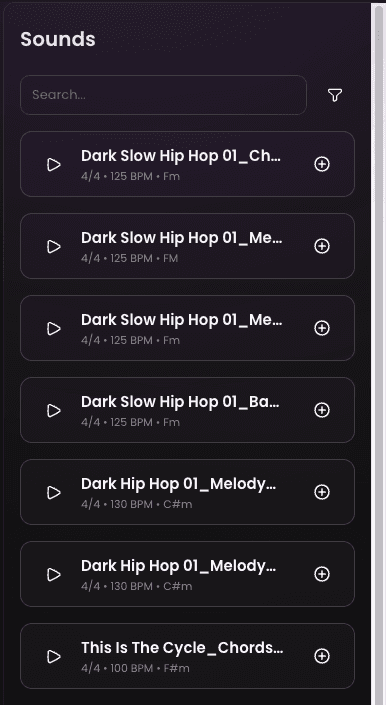
A. Browsing and Filtering
You can find the perfect starting sound by selecting the filter button and applying filters:
Filter by Register: Choose categories like Drums, Bass, Chords, or Swoosh.
Filter by Genre: Narrow the results down to styles like pop, wave, and rock.
B. Creating the Project from a Loop
Audition Loops: Click on loops to preview them.
Select a Sound: Once you find an inspiring loop, click to select it.
Move to Grid Tuney Producer will instantly create a new project in the Timeline Editor, placing that loop on the first track. The track's Key and Tempo will be set to match your chosen loop.
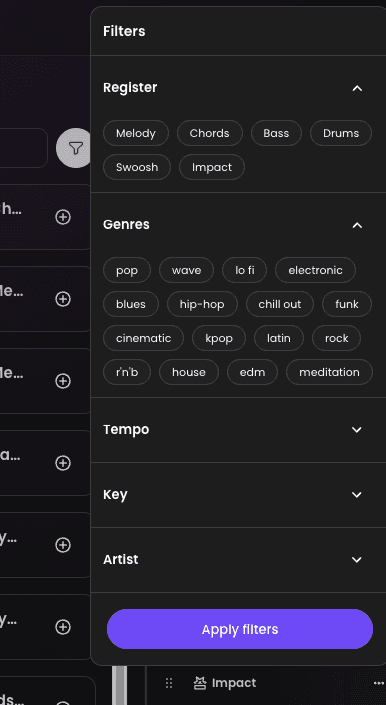
This process gives you the building blocks to start assembling your song using the drag-and-drop workflow of the Timeline Editor.
3. The Creative Next Step
Whether you start with a single uploaded stem or a library loop, the next phase is the same:
Build Layers: Add other loops and samples from the library to fill out the rhythm and harmony.
This flexibility allows you to seamlessly mix your custom sounds, high-quality loops, and AI generation, creating a truly unique starting point.