

Getting Started with Tuney Producer
Dec 12, 2025
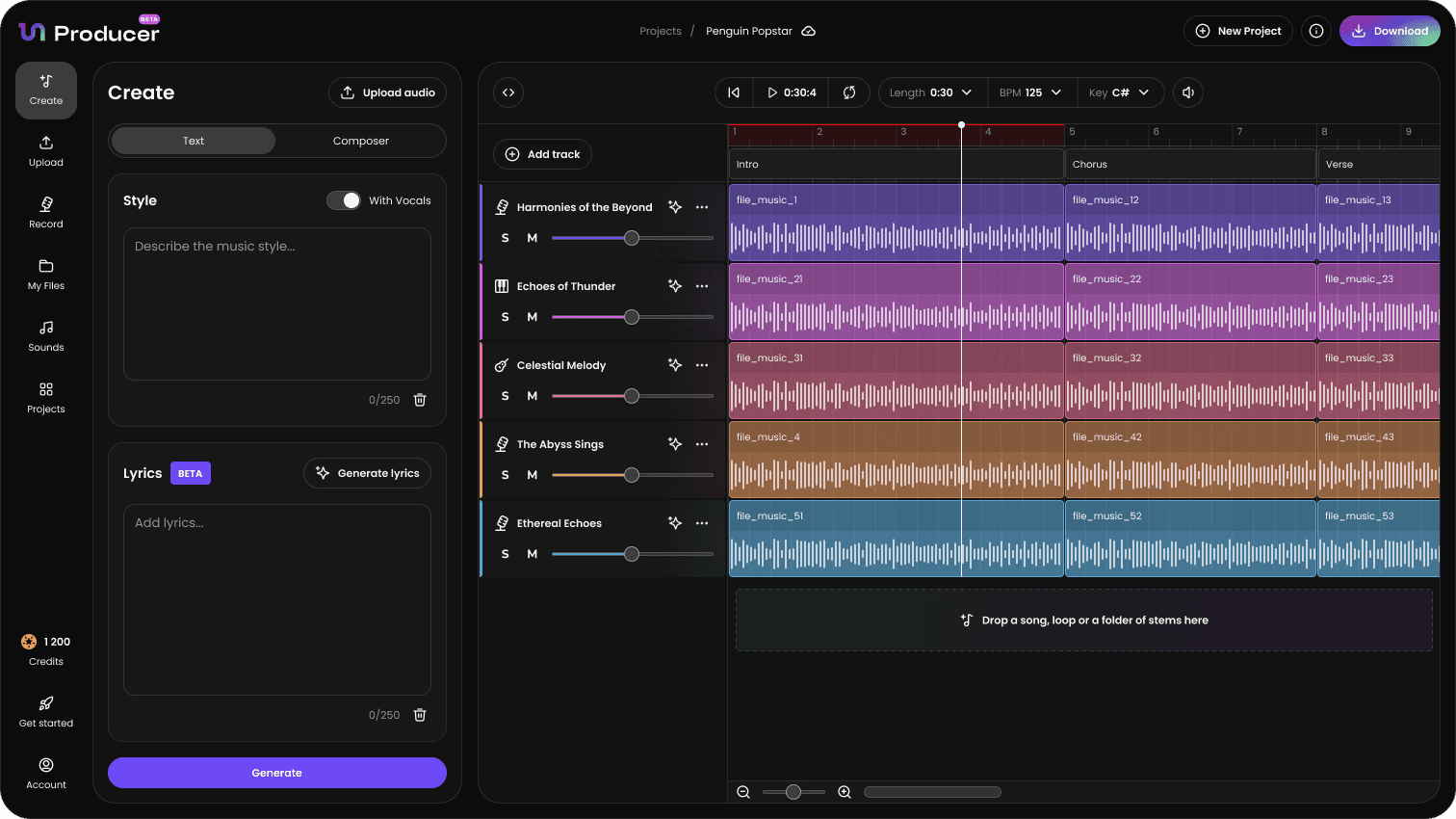
Welcome to Tuney Producer, the ultimate platform for combining AI-powered music generation with complete creative control. This article will guide you through Tuney Producer’s main features, navigating the primary interface, and understanding the different ways to start a new song.
The Core Modes: Creation and Control
Tuney Producer has two main sections:
A. Initial Generation
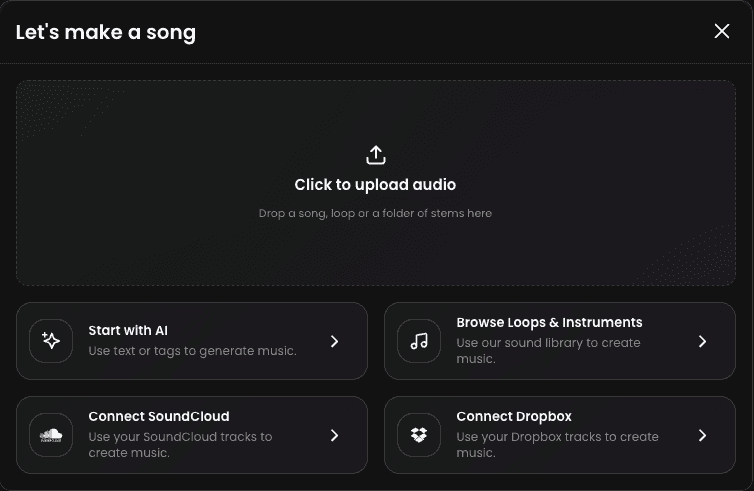
When you first open a project, you'll be presented with the Let’s make a song screen, which offers five distinct options to generate your song. Tuney Producer features multiple options to kickstart your project, whether you're starting from scratch, using AI, or remixing an existing song.
You can upload audio directly by dragging and dropping a file, or connecting to SoundCloud or Dropbox to import files directly. You can also explore Tuney’s Sounds Library or start with a prompt.
B. The Timeline Editor
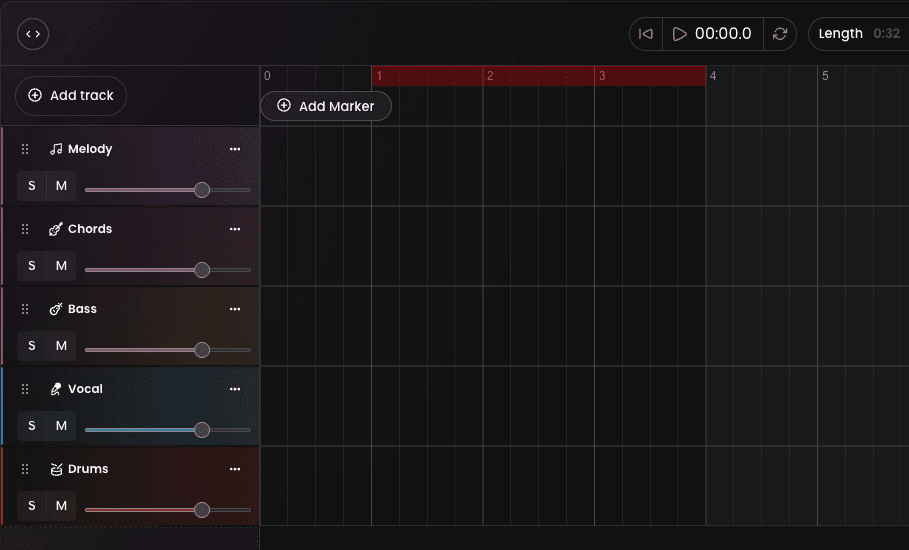
Once you choose a track, clicking the + icon will switch your view to a DAW-like production interface.
All your instrument stems are laid out on the grid along a musical timeline.
You can arrange, cut, copy, move, mix, and refine the music at the stem or instrument level. Check out the Timeline Editor article to learn more about the editing capabilities.
This is your primary environment for turning a simple idea into a polished, commercially-ready track. Your AI Co-Producer allows you to use natural language to add new sounds or transform your track.
Add AI vocals, record your own sounds, or change the sound of any individual element using Regenerate Instrument.
In the next article, we'll go step-by-step in creating a project within Tuney Producer: Understanding the Tuney Producer Workflow.